Tabular View
The widget allows presentation of information on a bidirectional grid, N rows x M columns.
Each row presents an instance of devices and each column represents a property of that device, examples of tables are: list of receptors, list of subarrays, list of alarms. Example of columns are names, addresses, LEDs, states, attribute values.
Widget setting
The following image shows an example of a widget setting.
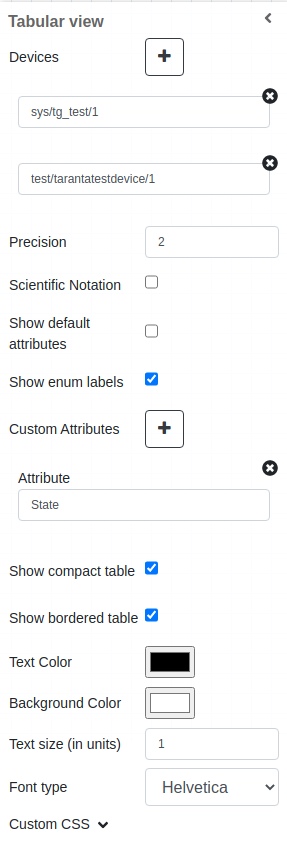
It is possible to customize the widget setting from the inspector panel(in edit mode), as below:
Input value |
Description |
|---|---|
Devices |
Type in a device name (or * to list all) |
Precision |
Integer to define the number of decimal cases |
Scientific Notation |
Enable this option to display the numbers in scientific notation |
Show Default Attributes |
If checked, it show the attributed defined in config.json file in columns |
Show Enum Lables |
Displays the enum labels when enabled |
Show Tango Database Name |
Displays the tango database name when enabled |
Custom Attributes |
The list of custom attributes added by the user |
Show Compact Tables |
It compacts the table size in order to show more data. |
Show Bordered Tables |
It creates a border for each cell in order to improve the readability |
Text Color |
Specify the color of text for given widget |
Background Color |
Specify the Background color for given widget |
Text Size (in units) |
Specify the font size of text for given widget |
Font Type |
Choose a font family. Either the default or Helvetica |
Custom CSS |
Write custom CSS for the widget container. The syntax is the same as standard CSS used in HTML files |
Widget render
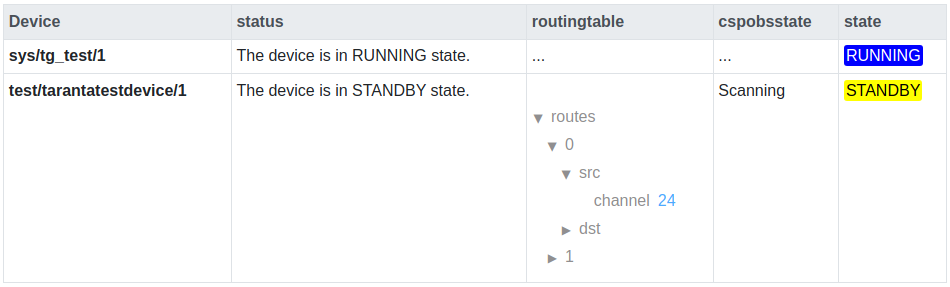
The image below shows an example of the Tabular widget running. It is important to note that:
The table header shows the list of attribute names
The first column shows the list of devices in bold
If the device does not have the attribute listed in the default configuration or custom attributes, ‘…’ is shown instead of the value
The table also shows ‘…’ when an attribute is unavailable or invalid for a device
States are colored using the Tango color convention
DevEnum attributes display only the label value
It is not possible to change the order of default or custom attributes