Attribute Display
The widget displays the value of a given attribute. It can display the raw value, or in the case of DevEnum types, it can also display the correspondent label.
Widget setting
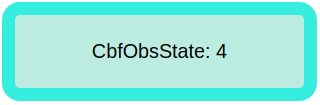
The following image shows an example of a widget setting.

It is possible to customize the widget settings from the inspector panel (in edit mode), as shown below:
Input value |
Description |
|---|---|
Device |
Type in a device name (or * to list all devices) |
Attribute |
Once a device is selected, type in an attribute name (or * to list all available attributes) |
Precision |
Integer defining the number of significant digits |
Format |
Enables formatting of a number. See the section below for more details. |
Show Unit |
Displays the unit when enabled and available |
Device Name |
Displays the device name when enabled |
Json Tree Collapsed |
If the attribute is a JSON, it will be initially collapsed when enabled |
Attribute Display |
Select the Label, Name, or None for the attribute |
Align Text on Center |
Aligns the text to the center when enabled |
Align Value on Right |
Aligns the value to the right when enabled |
Scientific Notation |
Displays scientific notation when enabled |
Show Enum Labels |
Displays the enum labels when enabled |
Show Attr Quality |
Displays the attribute value quality |
Text Color |
Specify the text color for the given widget |
Background Color |
Specify the background color for the given widget |
Text Size (in units) |
1 corresponds to 1em text size |
Font Type |
Choose a font family. Either the default or Monospaced |
Custom CSS |
Write custom CSS for the widget container. The syntax is the same as standard CSS used in HTML files |
Once the device is selected, the widget will display its attributes. If they are of the type DevEnum, a symbol ([…]) will be display in front of the attribute name.

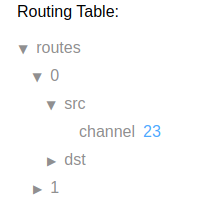
If the attribute’s value is a JSON string, the widget displays it as a set of selectable keys, as shown below:
JSON
If the attribute you’re viewing is a JSON, Taranta automatically applies proper formatting. By default, the JSON is collapsed and the user can navigate the tree. It can be fully expanded by unchecking “JSON tree collapsed” in the Inspector panel.
It is also possible to view specific parts of the JSON using XPath. The XPath should be specified in the ‘Format’ field of the Inspector panel. Let’s consider the following JSON as an example:
{
   "routes": [
      {
         "src":{
            "channel":96
         },
         "dst":{
            "port":3
         }
      },
      {
         "src":{
            "channel":235
         },
         "dst":{
            "port":16
         }
      }
   ]
}
Using the following XPath, it is possible to filter the output.
Format |
Result |
|---|---|
routes[0].src.channel |
96 |
routes[0] |
{“src”:{“channel”:96},”dst”:{“port”:12}} |
Data can be manipulated. For example, strings can be concatenated as shown in the following example:
Format |
Result |
|---|---|
routes[0].src.channel & ‘ ‘ &routes[1].src.channel |
96 235 |
routes[0].src.channel + routes[1].src.channel |
{“src”:{“channel”:96},”dst”:{“port”:12}} |
For more details, see the JSONata documentation
In the event that the XPath expression yields no results, the message ‘No result evaluating JSON expression’ is displayed. If the expression is syntactically incorrect, the message ‘Error evaluating JSON expression’ is shown.
Formatting a number
To apply specific formatting to numeric values, such as defining the notation type or the number of decimal places to display, use the ‘Format’ field. The ‘Format’ field is only applicable when the data is numeric; otherwise, it will be ignored.
By default, it has no value; therefore, the number is displayed as received from the data source. If it is populated, it overrides the configurations defined in ‘Precision’ and ‘Scientific Notation.’
There are two possible formatting styles. One is based on “placeholders”, where numbers or characters represent significant digits and special characters represent decimals, percentages, and so on. The other style is based on C-like syntax.
The following tables demonstrate how to use the ‘Format’ field to format a number.
C-like style
To use the C-like style format, start the string with the special char ‘%’, followed by one of the characters from the list below:
b — yields an integer as a binary number
c — yields an integer as the character with that ASCII value
d or i — yields an integer as a signed decimal number
e — yields a float using scientific notation
u — yields an integer as an unsigned decimal number
f or g — yields a float as is;
o — yields an integer as an octal number
t — yields true or false
x — yields an integer as a hexadecimal number (lower-case)
X — yields an integer as a hexadecimal number (upper-case)
s - yields a number as a sexagesimal
If you use sexagesimal conversion, you can specify the precision in the Inspector Precision field.
Examples
Number |
Format |
String |
|---|---|---|
-187 |
%b |
11011001 |
255 |
%c |
! |
-242.05 |
%d |
-242 |
-116.22 |
%e |
-1.1622268769557515e+2 |
-87.56 |
%u |
87 |
201.73 |
%d |
201.7306321011084 |
255 |
%f or %g |
! |
170 |
%o |
253 |
250 |
%x |
fa |
250 |
%X |
FA |
10.4 |
%s |
10:54:0.0.00 |
Manipulattion
There are basic functions introduced in case you need to manipulate the final data (add offset, change to kilo- or mili-).
Number |
Format |
String |
|---|---|---|
1000 |
.add(100) |
1100 |
1000 |
.subtract(100) |
900 |
1000 |
.multiply(100) |
1000000 |
1000 |
.divide(100) |
10 |
PLACEHOLDER STYLE
Number
Number |
Format |
String |
|---|---|---|
10000 |
‘0,0.0000’ |
10,000.0000 |
10000.23 |
‘0,0’ |
10,000 |
10000.23 |
‘+0,0’ |
+10,000 |
-10000 |
‘0,0.0’ |
-10,000.0 |
10000.1234 |
‘0.000’ |
10000.123 |
100.1234 |
‘00000’ |
00100 |
1000.1234 |
‘000000,0’ |
001,000 |
10 |
‘000.00’ |
010.00 |
10000.1234 |
‘0[.]00000’ |
10000.12340 |
-10000 |
‘(0,0.0000)’ |
(10,000.0000) |
-0.23 |
‘.00’ |
-.23 |
-0.23 |
‘(.00)’ |
(.23) |
0.23 |
‘0.00000’ |
0.23000 |
0.23 |
‘0.0[0000]’ |
0.23 |
1230974 |
‘0.0a’ |
1.2m |
1460 |
‘0 a’ |
1 k |
-104000 |
‘0a’ |
-104k |
1 |
‘0o’ |
1st |
100 |
‘0o’ |
100th |
Currency
Number |
Format |
String |
|---|---|---|
1000.234 |
‘$0,0.00’ |
$1,000.23 |
1000.2 |
‘0,0[.]00 $’ |
1,000.20 $ |
1001 |
‘$ 0,0[.]00’ |
$ 1,001 |
-1000.234 |
‘($0,0)’ |
($1,000) |
-1000.234 |
‘$0.00’ |
-$1000.23 |
1230974 |
‘($ 0.00 a)’ |
$ 1.23 m |
Bytes
Number |
Format |
String |
|---|---|---|
100 |
‘0b’ |
100B |
1024 |
‘0b’ |
1KB |
2048 |
‘0 ib’ |
2 KiB |
3072 |
‘0.0 b’ |
3.1 KB |
7884486213 |
‘0.00b’ |
7.88GB |
3467479682787 |
‘0.000 ib’ |
3.154 TiB |
Percentages
Number |
Format |
String |
|---|---|---|
1 |
‘0%’ |
100% |
0.974878234 |
‘0.000%’ |
97.488% |
-0.43 |
‘0 %’ |
-43 % |
0.43 |
‘(0.000 %)’ |
43.000 % |
Time
Number |
Format |
String |
|---|---|---|
25 |
‘00:00:00’ |
0:00:25 |
238 |
‘00:00:00’ |
0:03:58 |
63846 |
‘00:00:00’ |
17:44:06 |
Exponential
Number |
Format |
String |
|---|---|---|
1123456789 |
‘0,0e+0’ |
1e+9 |
12398734.202 |
‘0.00e+0’ |
1.24e+7 |
0.000123987 |
‘0.000e+0’ |
1.240e-4 |
Applying CSS to widget
The look and feel of widgets can be customised using the Custom CSS section. The syntax is the same as standard CSS used in HTML files.
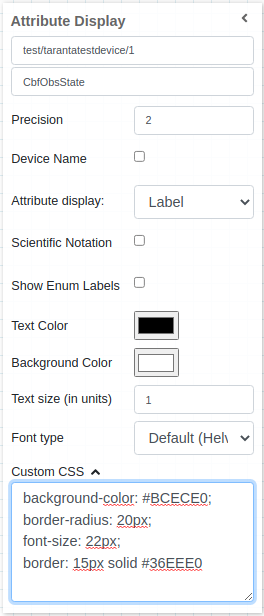
The above CSS rules written in the Custom Css section are applied to the widget as below: