Attribute Writer
This widget enables the user to write predefined values to an attribute. It gives the user a interface to provide input to override an attributes value.
Widget setting
The following image shows an example of a widget setting.

It is possible to customize the widget settings from the inspector panel (in edit mode), as shown below:
Input value |
Description |
|---|---|
Title |
Sets the title displayed for the widget |
Add Device |
Add Device button that allows the user to add one or more devices |
Device |
Type in a device name (or * to list all devices) |
Attribute |
Once a device is selected, type in an attribute name (or * to list all available attributes) |
Show Device Name |
Displays the device name when enabled |
Show Tango Database Name |
Displays the tango database name when enabled |
Attribute Display |
Select the Label, Name, or None for the attribute |
Align Value on Right |
Aligns the value to the right when enabled |
Text Color |
Specify the text color for the given widget |
Background Color |
Specify the background color for the given widget |
Custom CSS |
Write custom CSS for the widget container. The syntax is the same as standard CSS used in HTML files |
Widget design
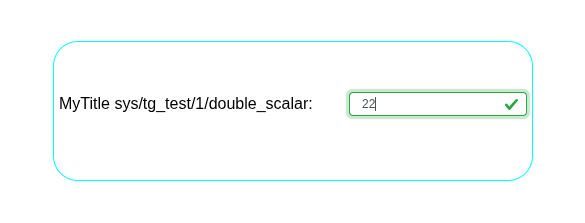
Notice: Depending on the type of attribute selected, the widget allows the user to input numbers, strings, boolean or special characters.
Good to know about this widget:
If the user enters an invalid value, an error message is displayed prompting them to enter a valid input. For example, for a
DevDoubleattribute,stringis considered invalid.

For attribute of type boolean, a dropdown is displayed with the values
trueandfalse. Awritebutton allows the user to overwrite the attribute’s value.For non boolean attributes, the value can be overwritten by pressing the
enterkey in the textbox.For non boolean attributes,
enteris not accepted until a valid value is typed for the attribute.