Command Writer
The widget enables the user to send a command with parameters to a certain device.
Widget setting
The following image shows an example of a widget setting.
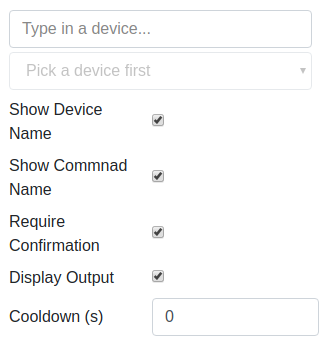
It is possible to customize the widget settings from the inspector panel (in edit mode), as shown below:
Input value |
Description |
|---|---|
Device |
Type in a device name (or * to list all devices) |
Command |
Once a device is selected, select a command |
Show Device Name |
Displays the device name when enabled |
Show Command Name |
Displays the command name when enabled |
Require Confirmation |
Shows a pop-up to the user to confirm to send the command when enabled |
Display Output |
Displays the output coming from TANGO when enabled |
Cooldown |
Cooldown in seconds |
Notice: For a command to be listed on the widget, the accepted parameters must be either a string or an integer
Widget design

Notice: To actually send a command to the device the user must hit ENTER key, if the “Require confirmation” is select a pop up will show to confirm the command to send.
At this point, the widget only accepts two types of parameters being a string or an integer.
All other types will give an error as a form of pop up for the user.