Command File
This widget allows the user to configure a command that sends the content of a file as an argument to a Tango device command.
When running the dashboard, the user must upload a file (max size 24MB) whose content will be sent to the command. After the file is successfully uploaded, a link displaying its name appears next to the upload button. The user can then click this link to preview, modify, or send the file content.
Widget settings
The following image shows an example of a widget setting.
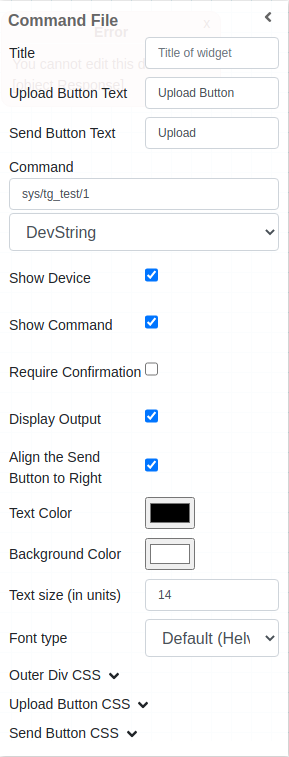
It is possible to customize the widget settings from the inspector panel (in edit mode), as shown below:
Input value |
Description |
|---|---|
Title |
Sets the title displayed for the widget |
Upload Button Text |
Add title to the uppload button |
Send Button Text |
Add title to the send button |
Device |
Type in a device name (or * to list all) |
Command |
Once a device is selected, select a command |
Show Device |
Displays the device name when enabled |
Show Tango Database Name |
Displays the tango database name when enabled |
Show Command |
Displays the command name when enabled |
Require Confirmation |
Shows a pop-up to the user to confirm to send the file content |
Display Output |
Displays the output coming from TANGO when enabled |
Align the Send Button to Right |
Aligns the send button to the right when enabled |
Text Color |
Specify the text color for the given widget |
Background Color |
Specify the background color for the given widget |
Text Size (in units) |
1 corresponds to 1em text size |
Font Type |
Choose a font family. Either the default, Monospaced or Verdana |
Outer Div CSS |
Write custom CSS for the outer div. The syntax is the same as standard CSS used in HTML files |
Upload Button CSS |
Write custom CSS for the upload button. The syntax is the same as standard CSS used in HTML files |
Send Button CSS |
Write custom CSS for the send button. The syntax is the same as standard CSS used in HTML files |
Any web image (or URL) can be used to customize the upload and send button. In addition, CSS rules can be applied to the widget; for example:
color: green;
background-color: red;
Note
For a command to be listed when configuring the widget, it must accept parameters.
Widget look and feel
The following pictures show how the widget looks like in a running dashboard. User can drag/move “file content popup” to view content of main/dashboard screen.

When the user clicks the “Send” button (the title of the button can be configured), a confirmation popup appears to confirm the action. Once confirmed, the command is executed, sending the uploaded file as an argument to the device. The command output is displayed next to the button.

On-the-fly changes of the file content
When the user previews the content of the uploaded file, it is possible to modify it on-the-fly. These changes are applied only to the uploaded content: Taranta does not change the file that was uploaded.

Taranta keeps the original file content and it is possible to restore it, by clicking on the “Restore” button. It is also possible to compare the original content with the updated one, by clicking on the “Compare” button. This shows a “diff” of the modified contents against the original one that was uploaded.
The “Edit” button can be used to make other changes.

When the original value is modified, the filename label in the widget changes, and the text [MODIFIED] is shown as a prefix of the label. In addition, the confirmation pop-up informs the user that the file content was modified.

