Command Switch
The widget allows the user to create a switch that sends different commands with parameters, to different devices depending on its state. The user can also send arguments when sending commands.
Widget setting
The following image shows an example of a widget setting.
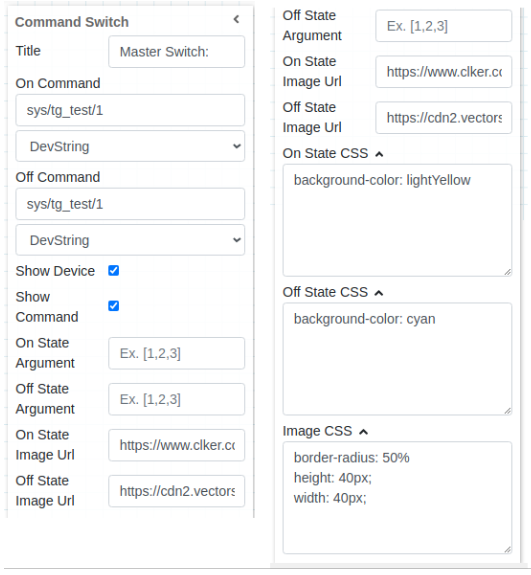
It is possible to customize the widget settings from the inspector panel (in edit mode), as shown below:
Input value |
Description |
|---|---|
Title |
Sets the title displayed for the widget |
On Switch Command |
Type in a device name (or * to list all) and a command name |
Off Switch Command |
Type in a device name (or * to list all) and a command name |
Status Attribute |
Type in a device name and an attribute name (or * to list all) |
On Status |
Sets the status for the on command |
Off Status |
Sets the status for the off command |
Show Device |
Displays the device name when enabled |
Show Tango Database Name |
Displays the tango database name when enabled |
Show Command |
Displays the command name when enabled |
Display Output |
Displays the output coming from TANGO when enabled |
Align the Send Button to Right |
Aligns the send button to the right when enabled |
TimeOut for Output Displays ms |
Timeout for displaying data |
On State Argument |
Argument for the on command |
Off State Argument |
Argument for the off command |
On State Image URL |
Select image to show for on state of the switch |
Off State Image URL |
Select image to show for off state of the switch |
On State CSS |
Write custom CSS for the on state. The syntax is the same as standard CSS used in HTML files |
Off State CSS |
Write custom CSS for the off state. The syntax is the same as standard CSS used in HTML files |
Image CSS |
Write custom CSS for the image. The syntax is the same as standard CSS used in HTML files |
Text Color |
Specify the text color for the given widget |
Background Color |
Specify the background color for the given widget |
Text Size (in units) |
1 corresponds to 1em text size |
Font Type |
Choose a font family. Either the default or Monospaced |
Widget CSS |
Write custom CSS for the widget container. The syntax is the same as standard CSS used in HTML files |
Any image URL from the web can be used to customize On / Off state of the switch.
*Notice: For a command to be listed on the widget, the accepted parameters must be either a string or an integer.
Widget design

Notice: The user clicks the switch button which fires the command with given arguments to the device. The user can select different device & command to represent On & Off state of the switch which will be updated when the user interacts / clicks switch