Logo
2.18.3
  • Home
    • Introduction
      • Current version
        • History of changes to Taranta (former Webjive)
        • What is Taranta
        • How to install Taranta
        • How to contribute to Taranta
        • Taranta Architecture
        • How to use Taranta
        • Sharing dashboard
        • Working with SVG
        • Available widgets
        • Deprecated widgets
        • Configuration
        • Dashboard environment
        • Error Handling Documentation
    • For developers
    • Authors
  • History of changes to Taranta (former Webjive)

User guide

  • What is Taranta
  • How to install Taranta
  • How to contribute to Taranta
  • Taranta Architecture
  • How to use Taranta
  • Sharing dashboard
  • Working with SVG
  • Available widgets
    • Dealing with labels
    • Dealing with attributes
    • Dealing with commands
    • Dealing with spectrum
    • Dealing with grouping of widgets
    • Dealing with dashboard
    • Dealing with logs
    • Dealing with SVG
      • InkScape
      • Link SVG element to tango device and attributes
      • SVG Widget
    • Dealing with images
    • Dealing with Sardana
    • Dealing with alarms
  • Deprecated widgets
  • Configuration
  • Dashboard environment
  • Error Handling Documentation

Architectural view

  • Taranta Architecture
  • Basic description of Taranta architecture
  • A Component and Connector View of Taranta Suite
  • A Module View Of Taranta Suite
  • Taranta charts

How to extend Taranta

  • How to Deploy a Widget

Known issues

  • Current known issues

External resources:

  • TangoGQL
  • Taranta authorization
  • Taranta Dashboard

State structure

  • Redux Store Structure
Taranta
  • Working with SVG
  • Link SVG element to tango device and attributes
  • View page source

Link SVG element to tango device and attributes

After creating SVG, each of its elements can be associated to a tango device or device attribute. To associate an SVG element to a tango device right click SVG element > Object Properties(Ctrl+shift+O), write the name of tango device under description section and click set button in the bottom to save the changes as shown below:

IMG1

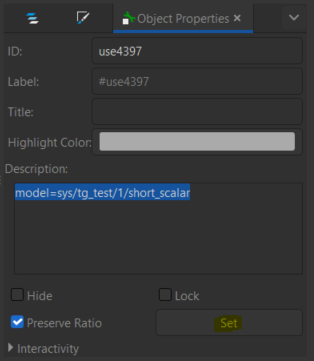
In above image user is trying to link sys/tg_test/1 device to an SVG element. If no attribute is present along with device name then by default device status attribute will be linked The syntax is model=<tango_device_name>/<attribute_name> For ex. to link short_scalar attribute from sys/tg_test/1 the description text would be model=sys/tg_test/1/short_scalar as shown below:
IMG2

Similarly user can link any device attribute (scalar / spectrum) to an SVG element. For spectrum user need to use his skill to show it correctly on the widget.

One SVG element should be linked to only one tango device / attribute.

Once the linking task is done, user can export the file as *.svg from InkSpace. And this exported svg file can be used in the SVG Widget.

Previous Next

© Copyright 2021-2026, Taranta.

Built with Sphinx using a theme provided by Read the Docs. Creative Commons Licence
Taranta Documentation by Max-IV Institute - SKA is licensed under a Creative Commons Attribution 4.0 International License .
Based on a work at gitlab.com/tango-controls/web/taranta .