Adding hyperlinks in SVG
SVG elements can be made interactive by embedding hyperlinks using the <a> tag, allowing users to create clickable graphics and text elements. Here’s how you can add hyperlinks in SVG and the advantages of doing so.
How to add hyperlinks in SVG
Open your SVG file in Inkscape.
Select the component or text you want to add hyperlink.
Right-click on the object and select Create anchor.
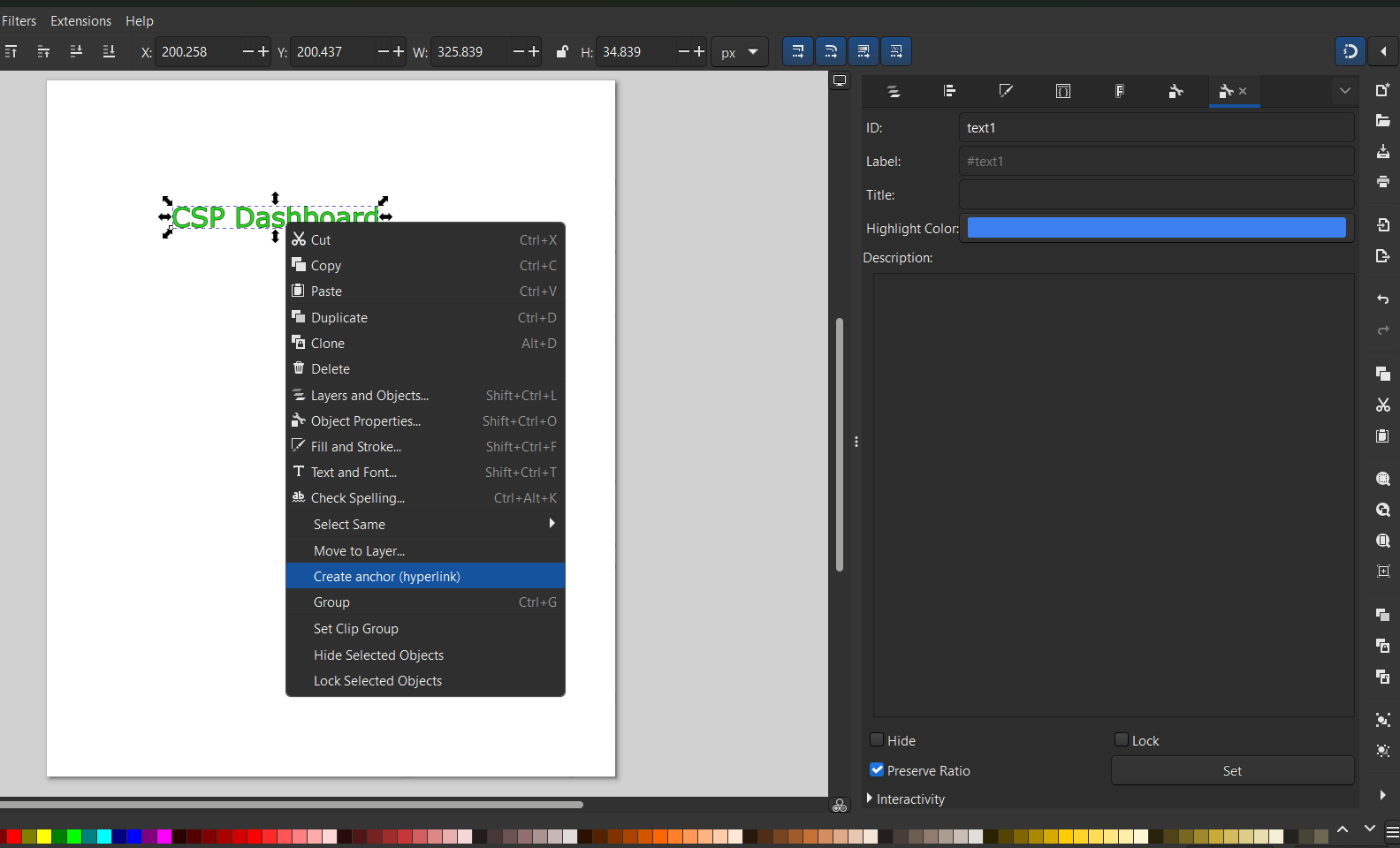
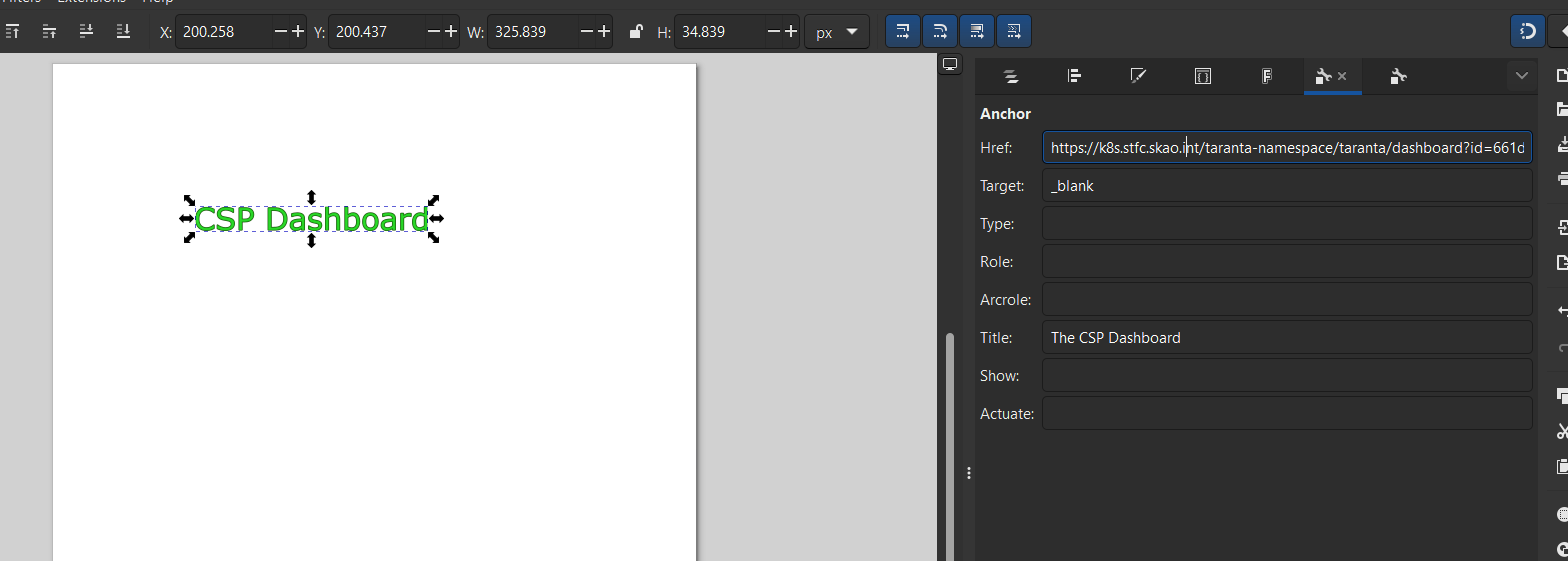
After clicking on Create anchor, a new panel will appear on the right to add details. Below table has more details about each field in the panel. Add the details and save it.
Input value |
Description |
|---|---|
Href |
Specifies the URL or path the hyperlink points to. |
Target (Optional) |
Specifies how the hyperlink should open when clicked. Commnon values: _self: Opens the link in the same tab or window (default behavior), _blank: Opens the link in a new tab or window. |
Title (Optional) |
Provides additional information about the link, usually displayed as a tooltip when the user hovers over it. |
Similary you can also add hyperlink to shapes too. You can also remove hyperlink from an svg component (text / shape) by right clicking the component and clicking on remove hyperlink
Advantages of Adding Hyperlinks in SVG
1. Enhanced Interactivity
Hyperlinks allow SVG elements to serve as interactive components, such as clickable buttons or navigational elements. Purpose: Hyperlinks make SVG files interactive, allowing users to click on elements like text, shapes, or images to navigate to external or internal resources. Example: Create an dashboard where clicking on different button leads to corresponding pages with detailed information.
2. Seamless Integration with Web Pages
Adding hyperlinks makes SVGs behave like standard HTML elements, enabling consistent user experiences. Purpose: SVG files with hyperlinks integrate seamlessly into websites without requiring additional HTML coding for links. Example: Use a linked company logo in the header of a webpage that redirects to the homepage when clicked.
3. Improved Accessibility
With proper attributes (like title), SVG hyperlinks can be made accessible to assistive technologies, improving usability.