Alarm Indicator Widget
This widget enables the user to view alarm(s) and send a command with parameters to the alarm device
Setting up alarms
If you have setup the alarms then you can skip this section.
Once we have alarm device ready, we can configure alarm to this devices from device tab. We are using alarmSimulator attribute from test/tarantatestdevice/1 device configure low, medium & high priority alarms.
In table below we are configuring 3 alarms:
Low priority alarm which will be triggered if alarmSimulator value between 0 & 1
Medium priority alarm which will be triggered if alarmSimulator value between 2 & 3
High priority alarm which will be triggered if alarmSimulator value is 4.
Alarm Priority |
Tag value (Argument to use in load command) |
|---|---|
Log / Low Alarm |
tag=taranta_logAlarm;formula=((test/tarantatestdevice/1/alarmSimulator >= 0) && (test/tarantatestdevice/1/alarmSimulator < 2));priority=log;message=”alarmSimulator log event” |
Warning / Medium Alarm |
tag=taranta_warningAlarm;formula=((test/tarantatestdevice/1/alarmSimulator >= 2) && (test/tarantatestdevice/1/alarmSimulator < 4));priority=warning;message=”alarmSimulator warning event” |
Fault / High Alarm |
tag=taranta_faultAlarm;formula=(test/tarantatestdevice/1/alarmSimulator == 4);priority=fault;message=”alarmSimulator fault event” |
This is just an example, we can configure alarms as per our needs.
For eg. In below figure we are creating log alarm by executing load command with argument from above table.
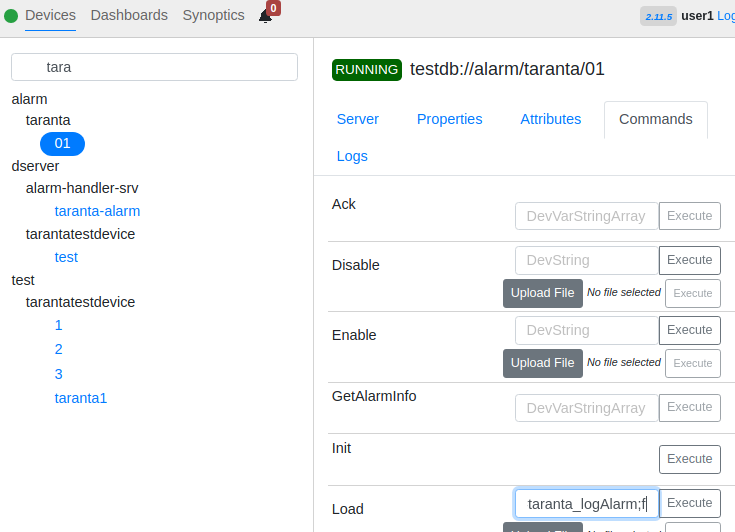
Once all alarms are created, the same can be seen under properties > AlarmList tab
For eg. In figure below we have created taranta_logalarm, taranta_warningalarm, taranta_faultalarm.
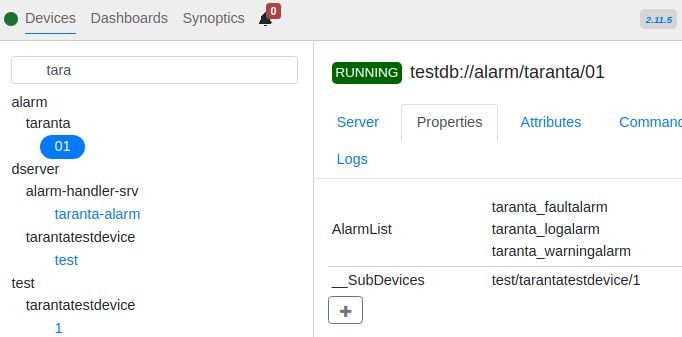
Based on our needs we can also remove the alarms using the remove command by providing alarm name.(taranta_logalarm in our case)
Widget setting
The user has the ability to select:
Select the Alarm Device and the Attribute: Choose the specific alarm device and its corresponding attribute to visualize in the dashboard.
Text Color (color palette): Specify the color of text for given widget
Background color (color palette): Specify the color of background for given widget
Text size (integer): Specify the font size of text for given widget
Font type (dropdown menu): Choose the font family
Custom CSS: Write custom CSS for the widget container.
Widget configuration
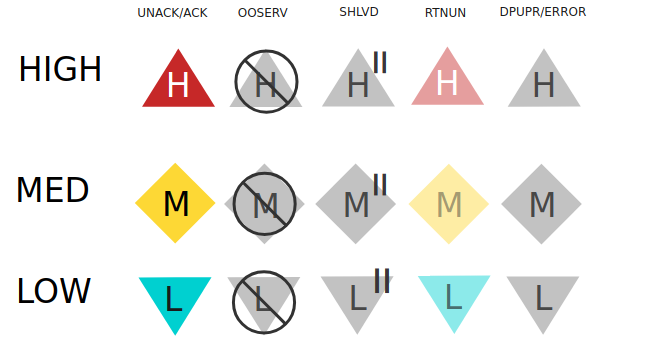
Before starting to use the Alarm Indicator its important to know which svg icon will represent the alarm priority and status. A matrix representing this is shown below
For eg. The svg icon at 0,0 position in the matrix will appear for the alarm with high priority and ACK status, similarly the icon at 1,3 position will represent a medium priority alarm which is in RETNUN status
Note:
The icon will blink if it is UNACK status, for ACK it will remain normalThe icon will faded if it is in RETNUN status.No icon will be shown if alarm is in normal(NORM) status.
Once you have configured the Alarm Indicator by selecting alarm a device and an attribute, you can hit run button to view the real time alarm status. The widget will render a svg icon to represent alarm priority and status, this will change based on the alarm values(priority & status). In figure below, we have configured Alarm Indicator with device alarm/taranta/01 and attribute taranta_logalarm
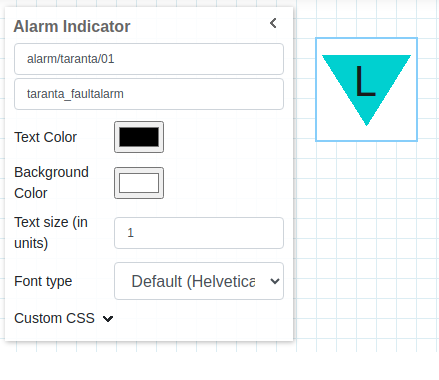
In image below we can see a low priority alarm which is in RETNUN status. The svg icon is faded because its in RETNUN status
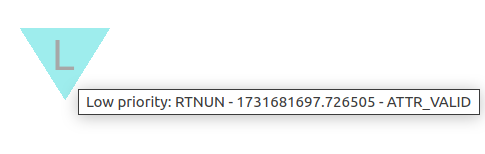
Note: By hovering the svg icon, you can see the priority, status, timestamp and attribute validity respectively of the alarm
Changing Alarm Status
We can either use jive or command widget from the dashboard to change the status of an alarm.
For eg. In below image we have configure a command widget with alarm device alarm/taranta/01 to execute ACK command.
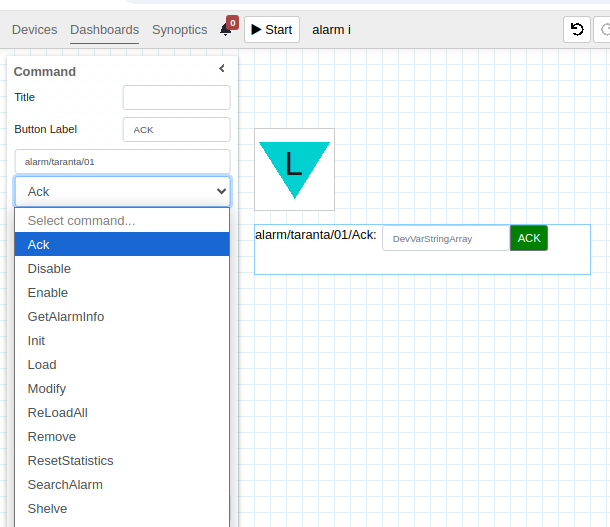
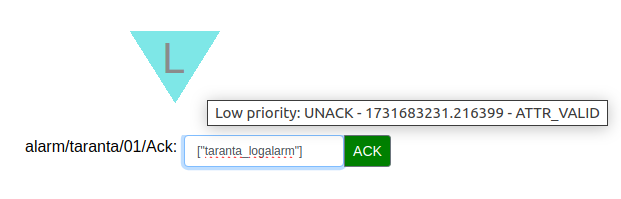
As shown in figure below, once alarm is in UNACK status, we can execute the ACK command after which alarm status changes to NORM (No icon shown). The input value to the command is the alarm name (taranta_logalarm) which we have used to configure Alarm Indicator widget.
Similarly we can also configure command widget to disable (OOSRV), enable, Shelve etc. the alarm.